
New Island Installation
Before you begin, you should have the following:
Internet Service. You may have been provided a stand-alone modem or a combo unit (all-in-one modem + router).
Note: When ordering Internet service, you can request a combo unit provisioned in pass-through mode. You simply need a modem or combo unit with a public IP address.A switch
APs or a mesh system for Wi-Fi
Step 1:
Important: If you have a combo unit, make sure it is in bridge mode.
Note: The steps below reflect a modem-only configuration, not a combo unit.

Step 2:
Power up Island. Wait about 30 seconds for the light to turn from white to blue.
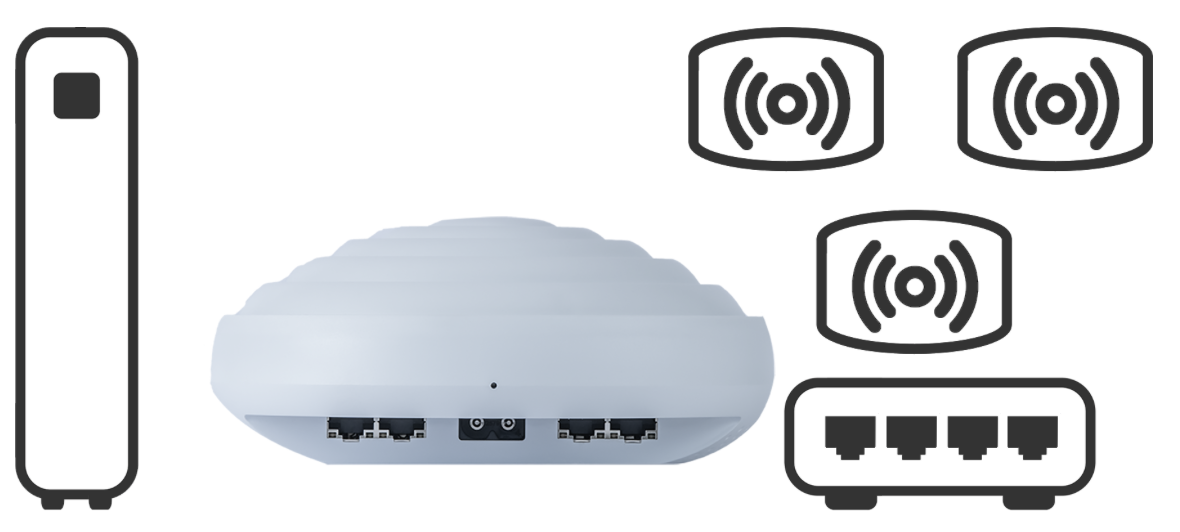
Step 3:
Plug the combo unit or modem into Island.
Important: This is now your WAN port. Note the port number.
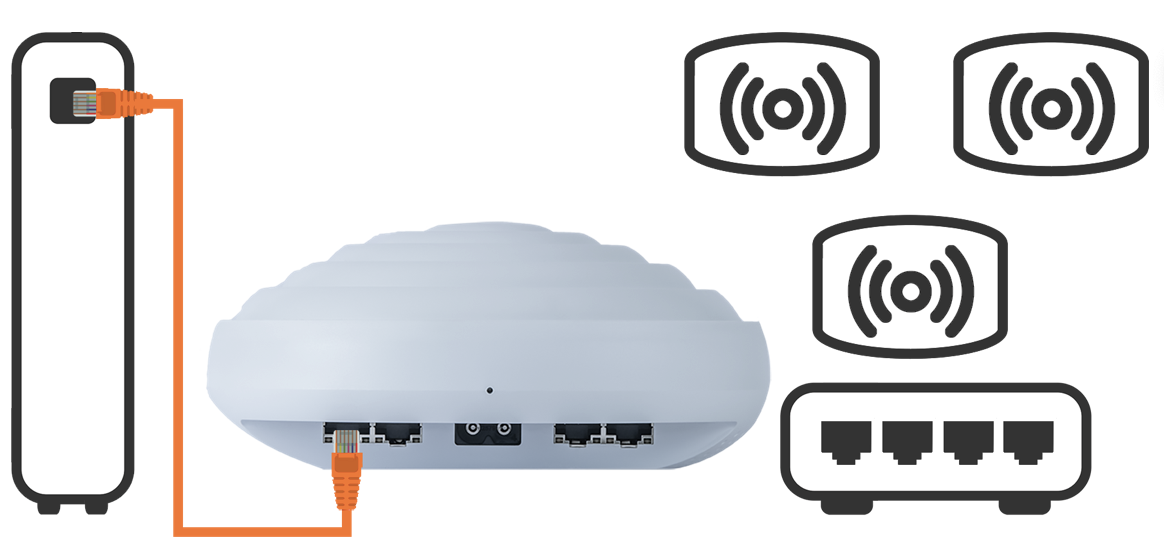
Step 4:
Plug the switch into an available port on Island.
Important: This is now your LAN port. Note the port number.
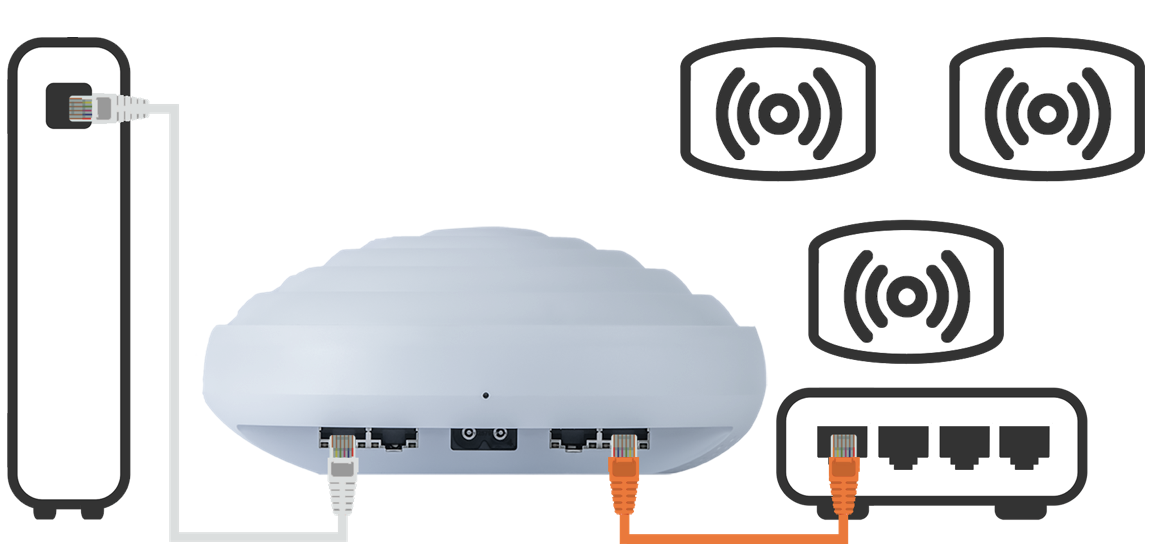
Step 5:
Plug the AP or mesh into the switch. If you are using a mesh, install it according to the manufacturer’s instructions making sure it is configured in AP mode and not router mode.
Step 6:
Reboot the modem or combo unit.
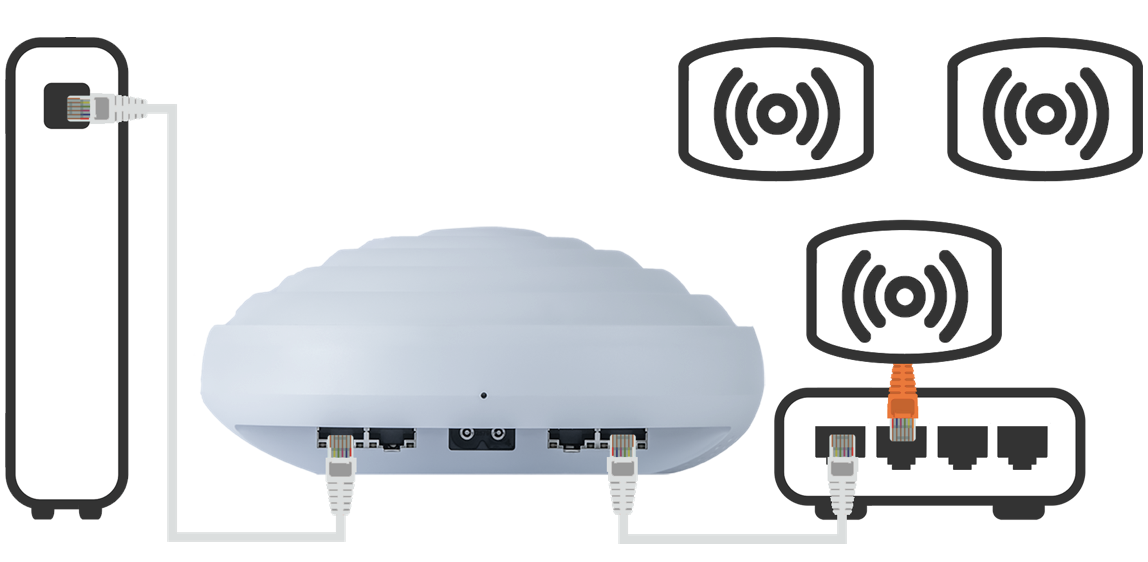
Step 7: Continue using either:
The web app (requires a laptop and Ethernet cable) or
The mobile app (requires installed and accessible WiFi)
If using the web app
Plug a laptop into any open port on the Island.
Browse to my.islandrouter.com.
Choose “Initialize” on the app screen.
If using the mobile app
Download the Island app from the App Store.
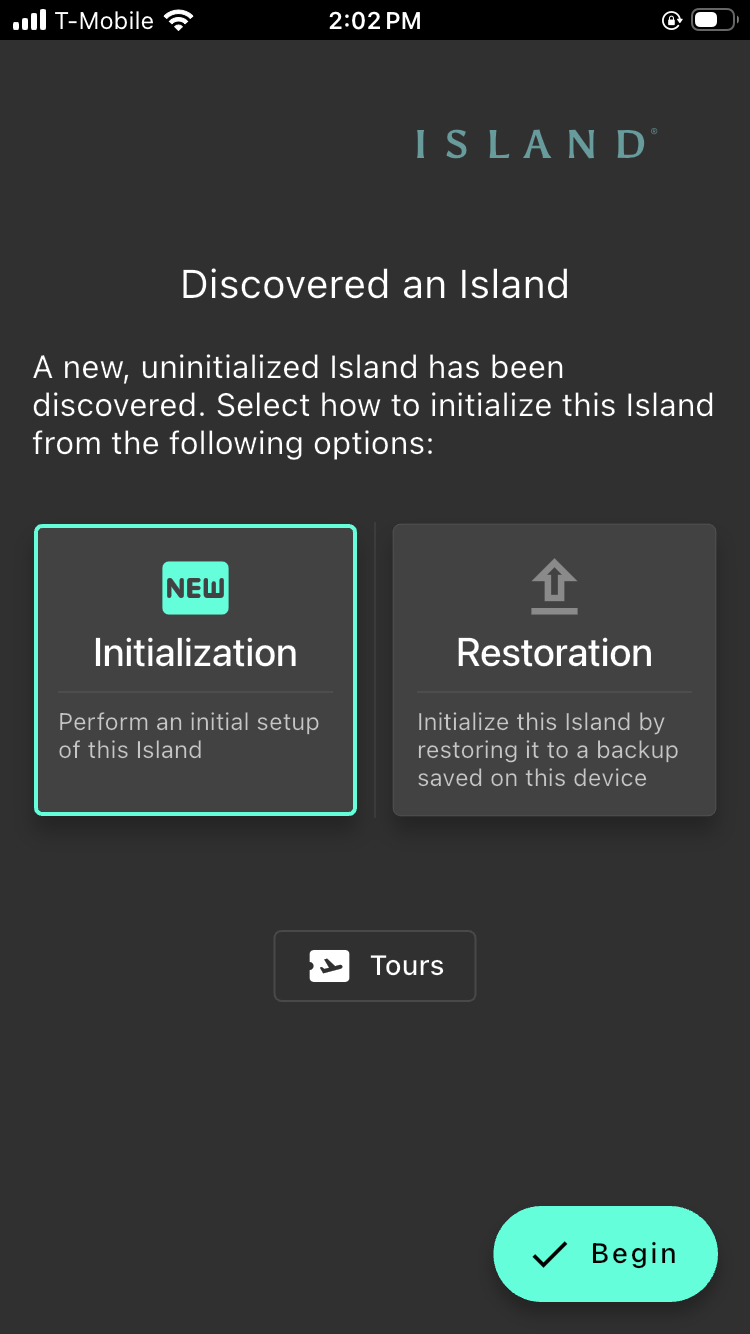
Launch the app. If the device you are using has been previously used to set up other Islands, see the note below. Otherwise, continue with Step 3.
Note: If the app opens to a previously-setup island, go to Tours and select Discover. If the app opens to a list of previously-setup Islands, choose any Island, go to Tours and select Discover. If you have cleared the “home” Island designation on your previously-setup Island, the app will either go directly to Discover or will start up in Tours if multiple Islands are remembered. In each case, upon doing a Discover, you will connect to the new uninitialized Island.
If you had previously made a backup of any Island on the mobile device, you will be prompted to Initialize or Restore. Choose Initialize. If a previous backup does not exist, the app will go directly to the following setup prompts.
Setup Steps Common to Web and Mobile App:
Step 8:
Reply to the prompts beginning with name your Island, name the device from which you are connecting to this Island, first user setup, and so on.
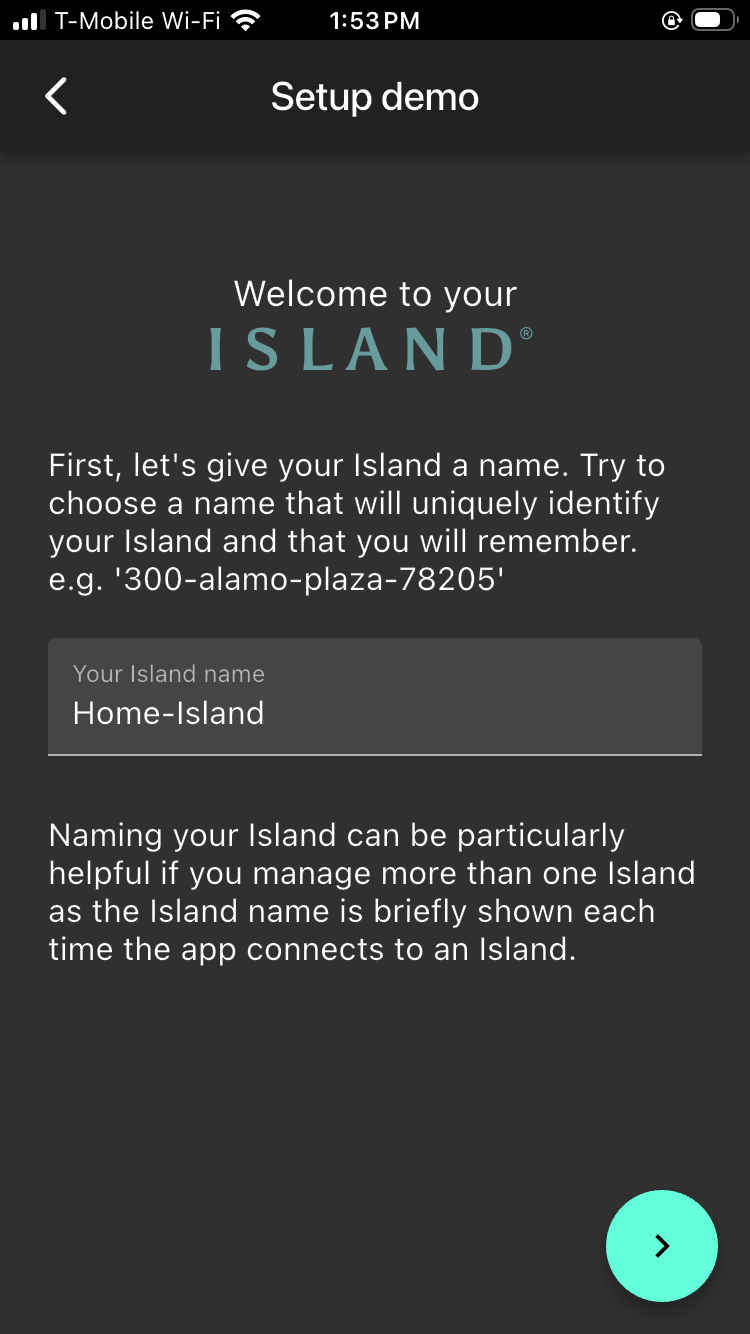
Give Island a name
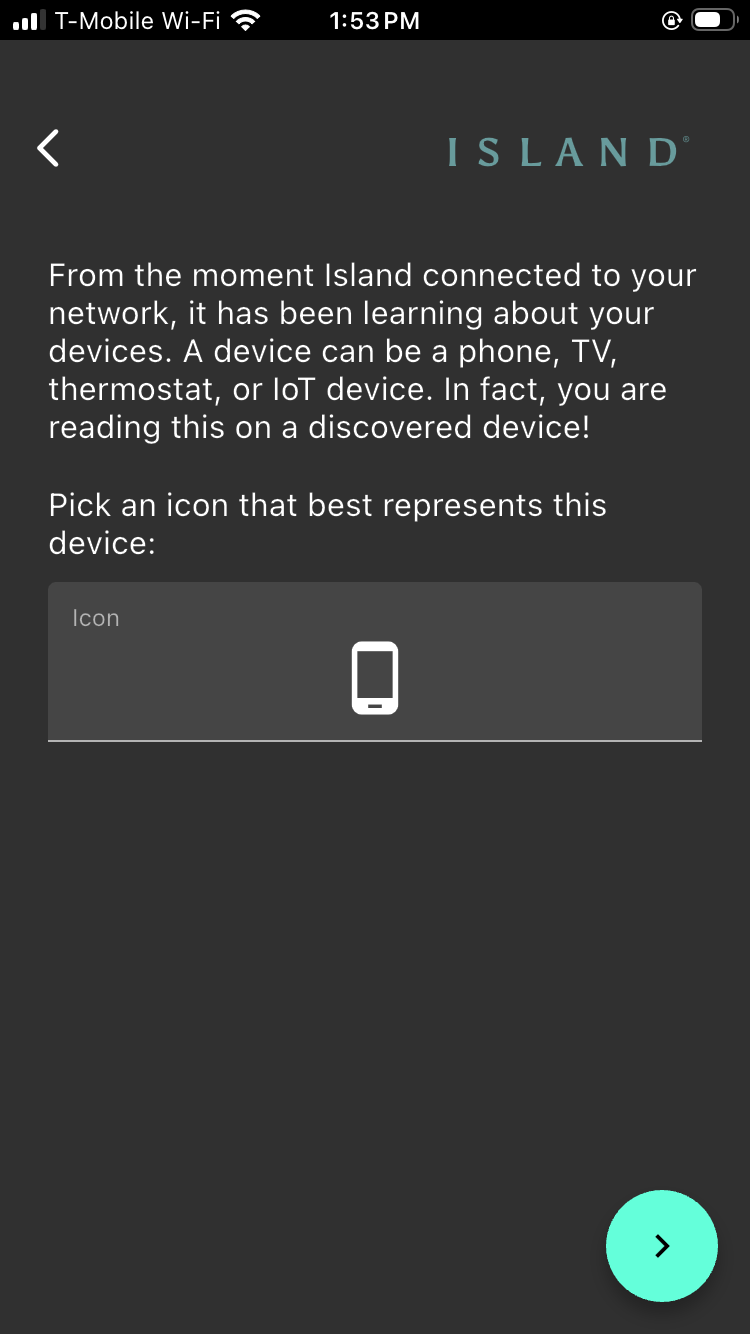
Select an icon for the device configuring Island
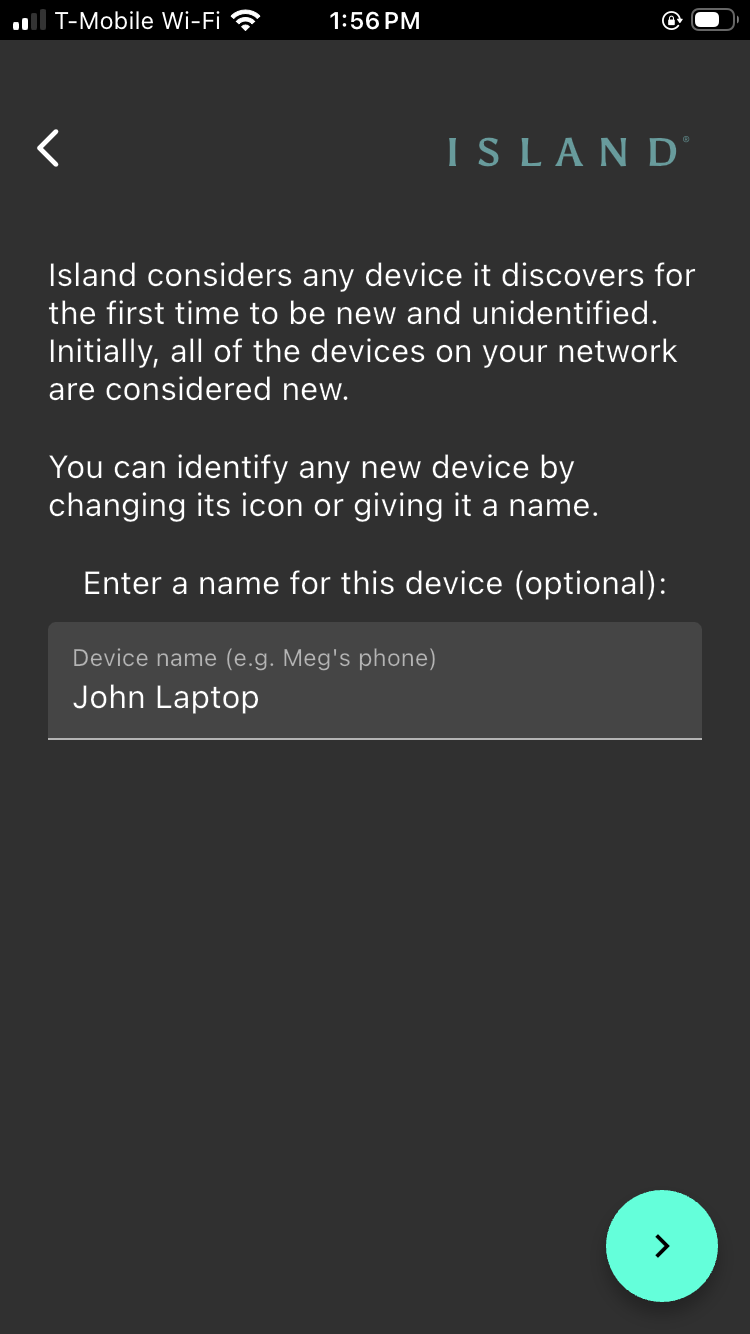
Give the device a name
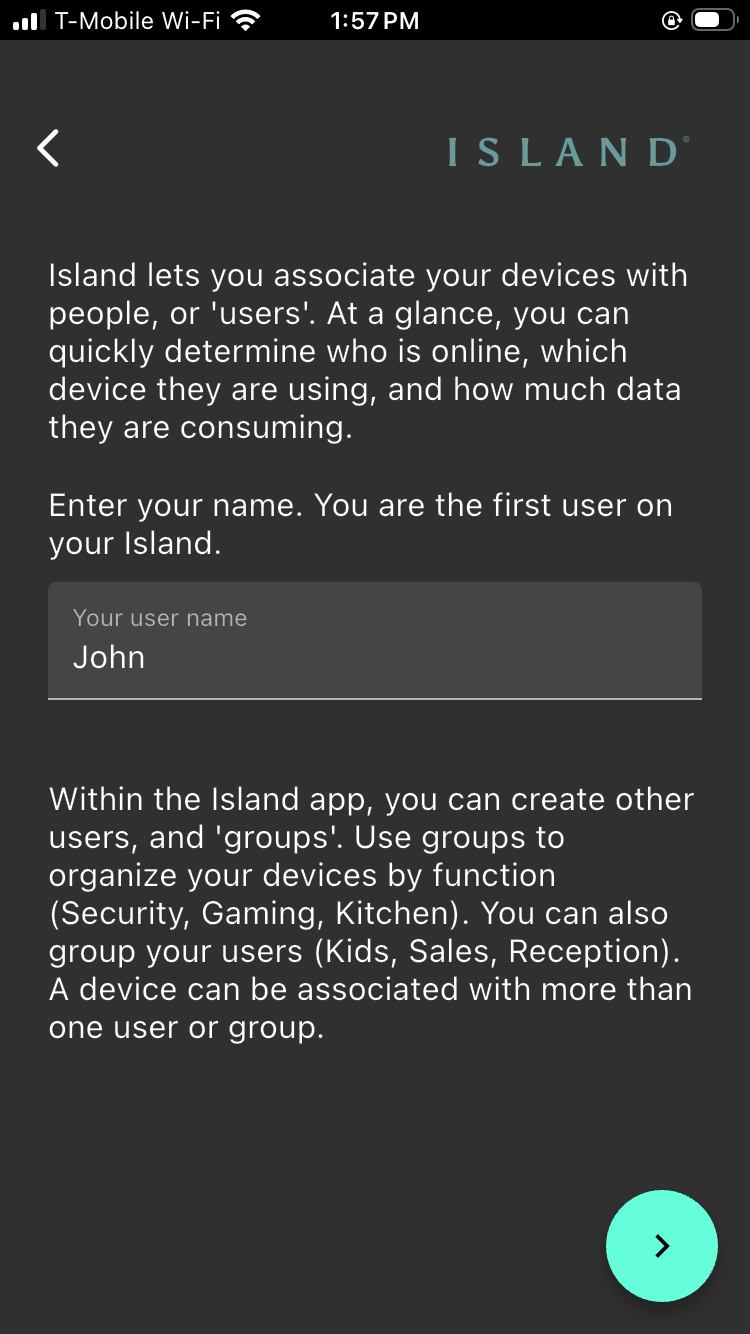
Give the user a name
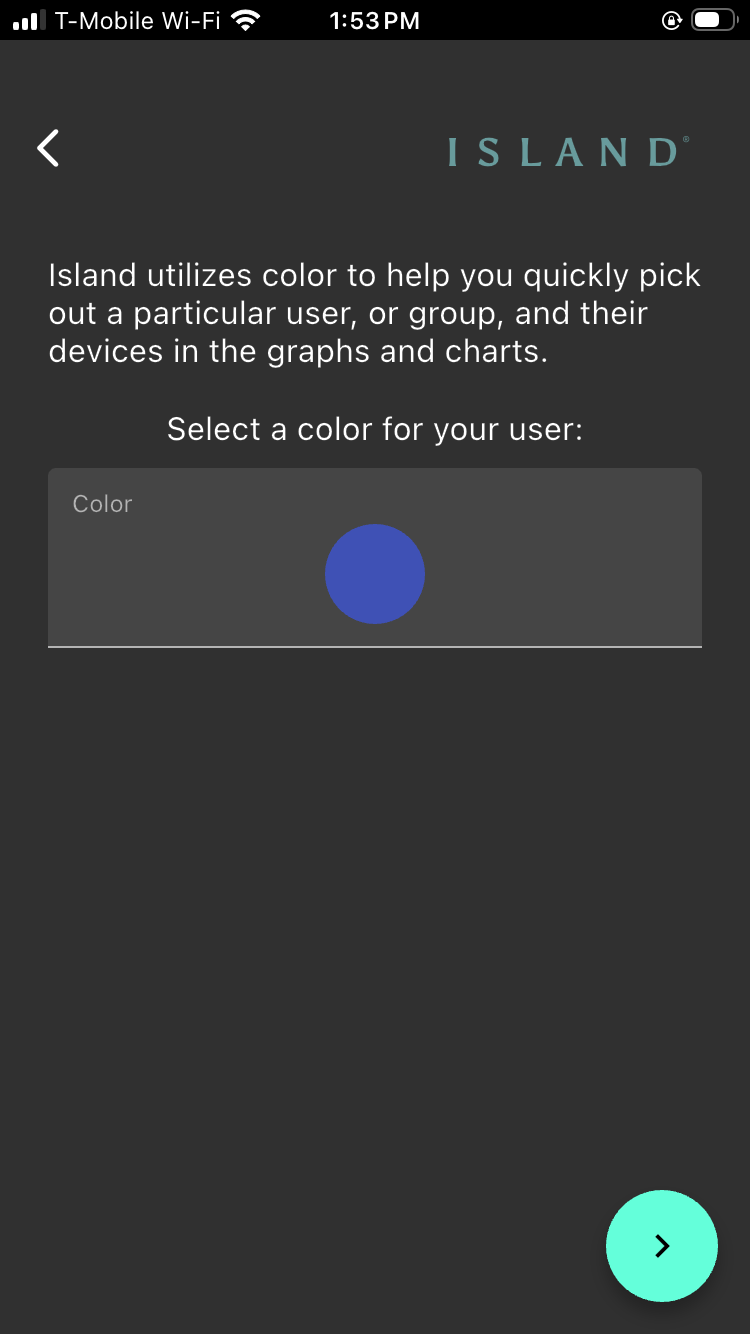
Select a color for this user
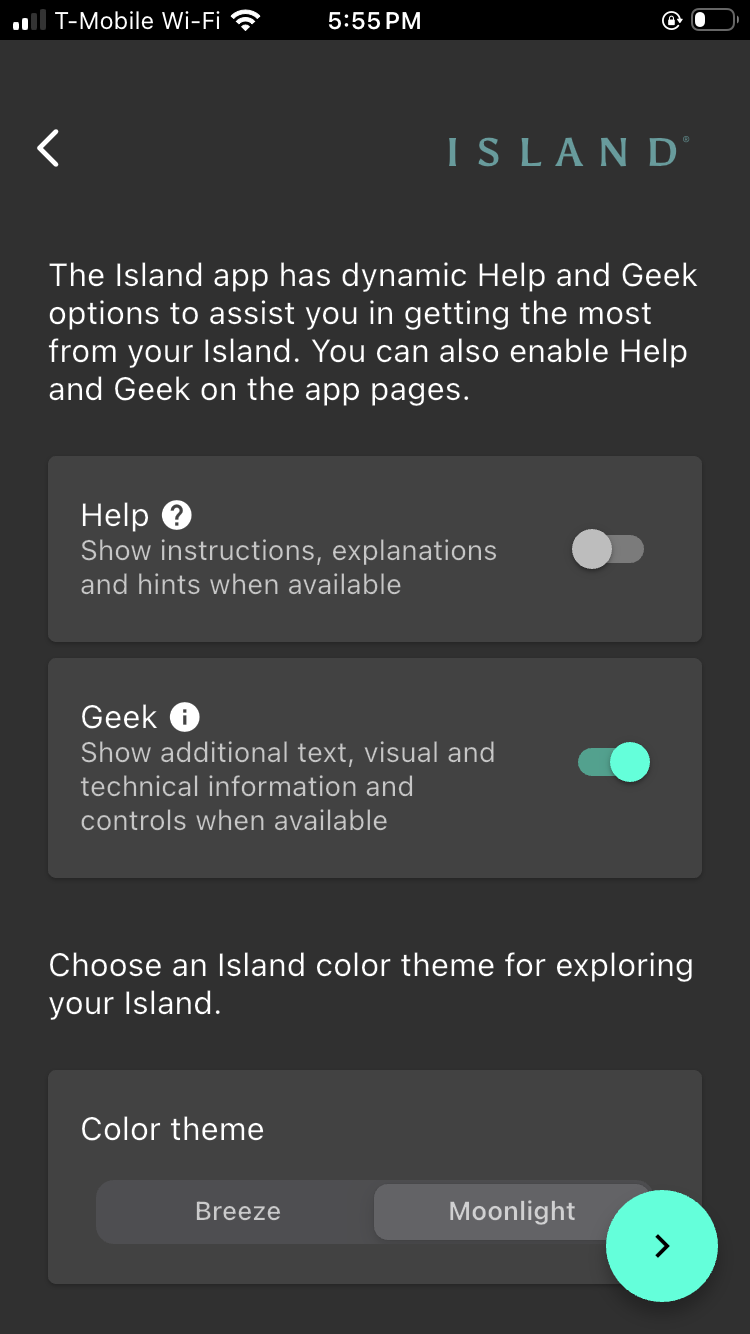
Ensure Geek mode is on and select display color
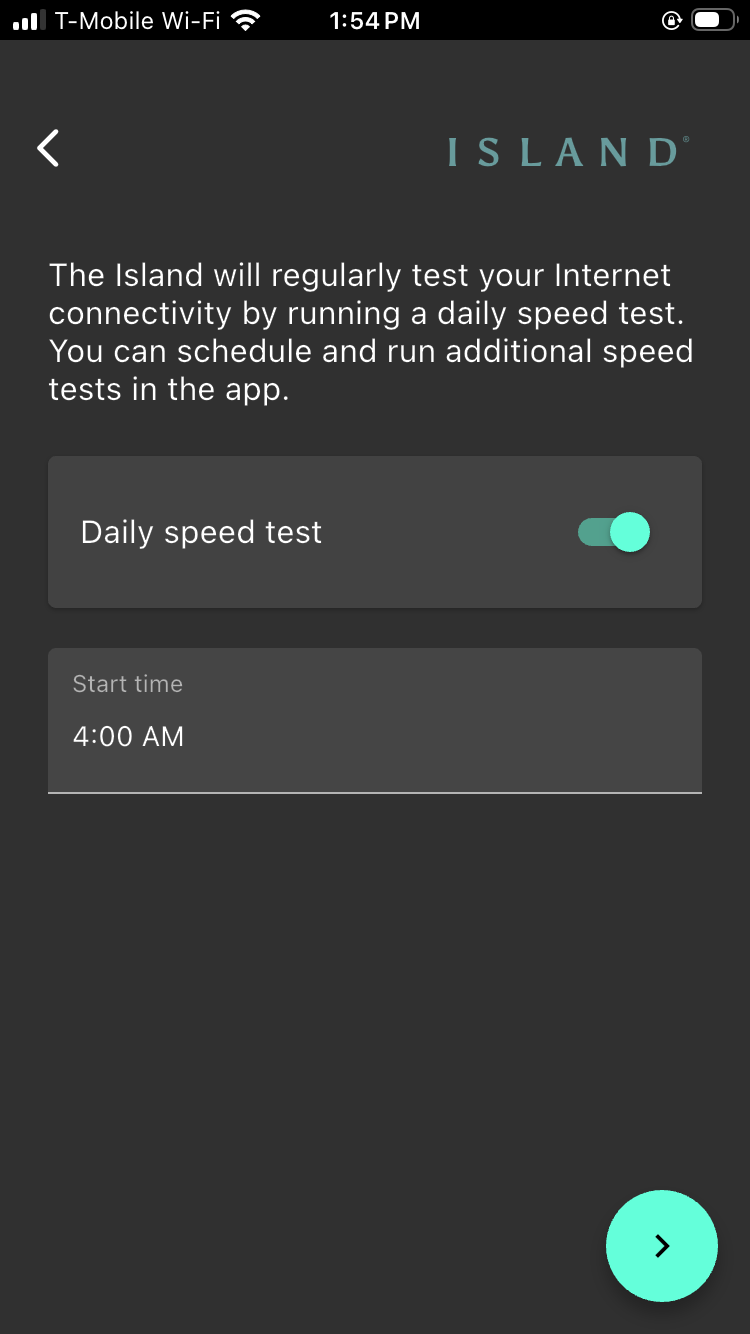
Set the speed test schedule
Step 9:
Enter and confirm a PIN for the Island, making sure to take measures to remember it. If you don’t select “Remember PIN on this device”, you may need to re-enter the PIN at various points in the process.
Step 10:
As soon as the PIN Is confirmed, the app restarts and immediately checks if the firmware on your Island is current. If prompted to update, respond “Yes”.
Step 11:
Depending on the firmware version, the Island may reboot itself at this point.
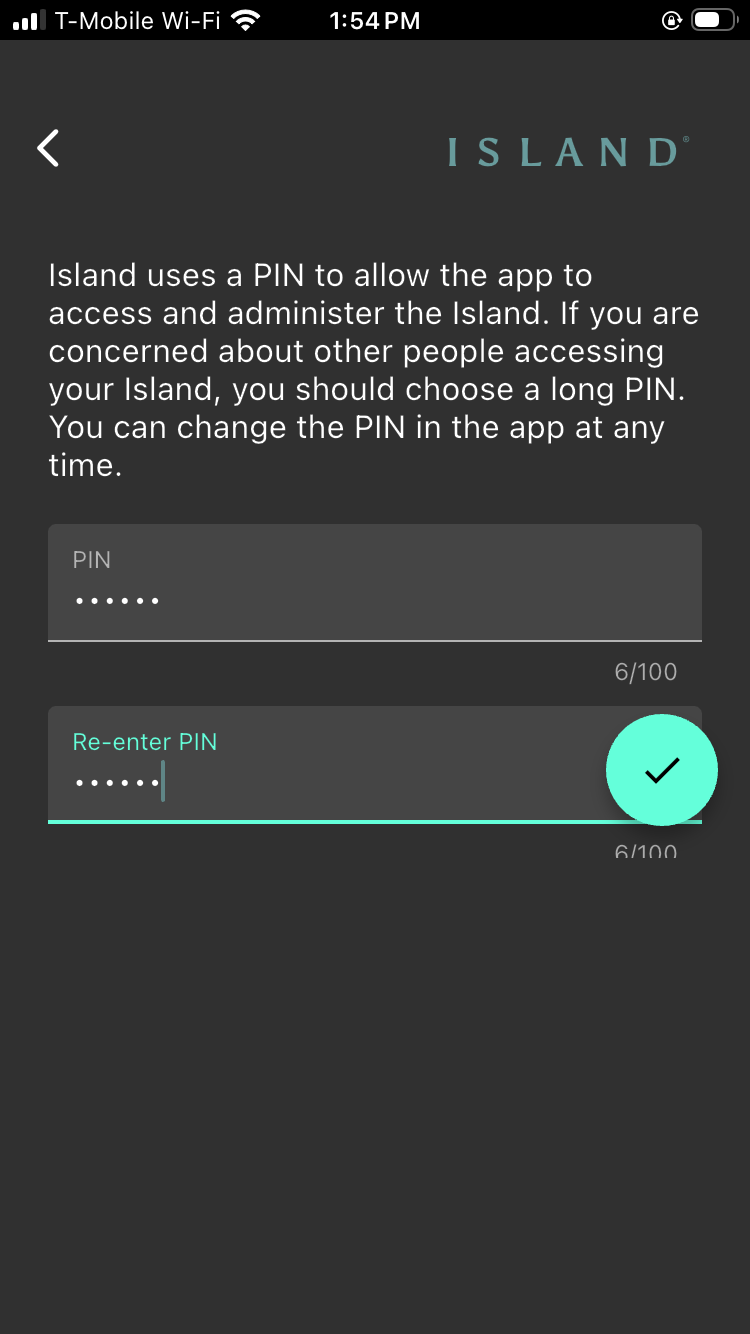
Create a PIN for the Island
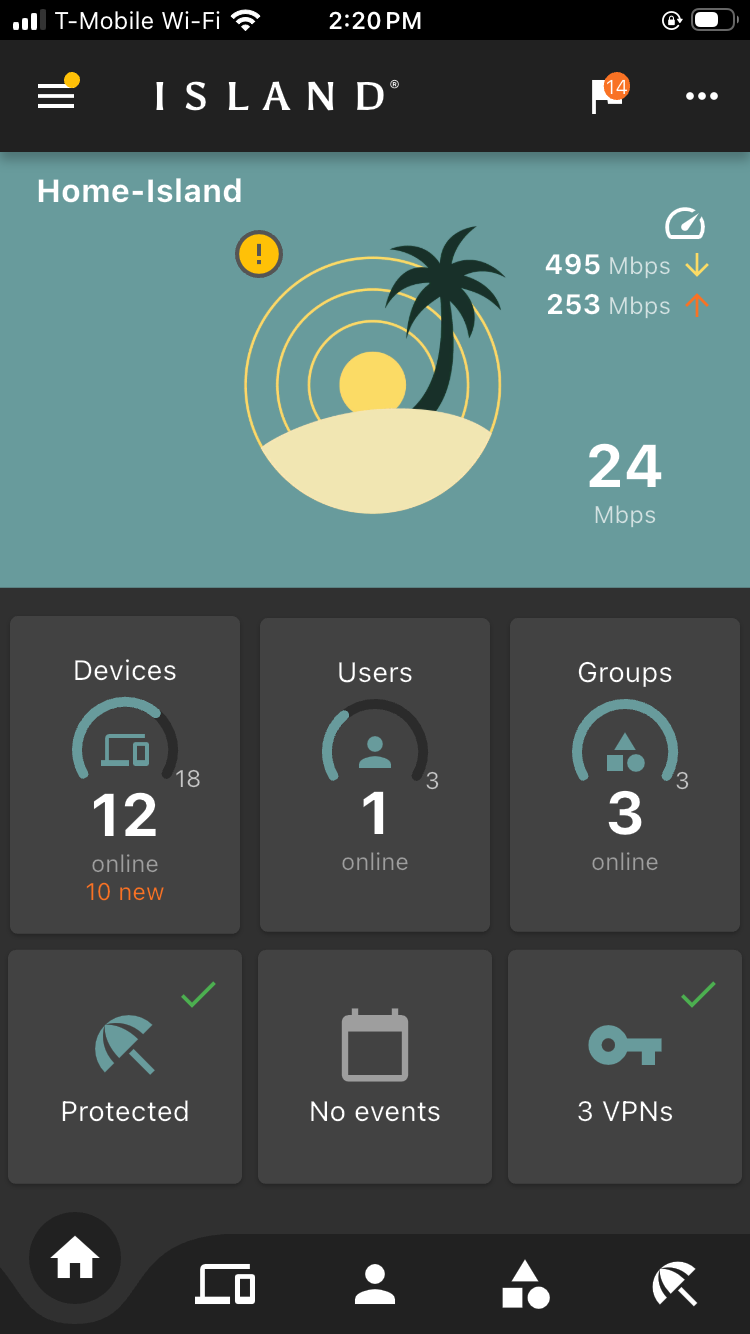
Go to the Home Screen
Step 12:
From the main dashboard, click on the amber notice icon to the top left of the large Island icon. A message box opens asking you to lock in the port modes. After ensuring that the recommendations for the interface modes are correct, select “LOCK”. (This action can also be accomplished by going to the Network screen under the top left hamburger menu, where you will be prompted to lock ports if needed.)
Note: If you need to adjust the IP address range or DHCP scope, you may do it from the LAN interface screen as shown in the last screen below.
Click the amber exclamation
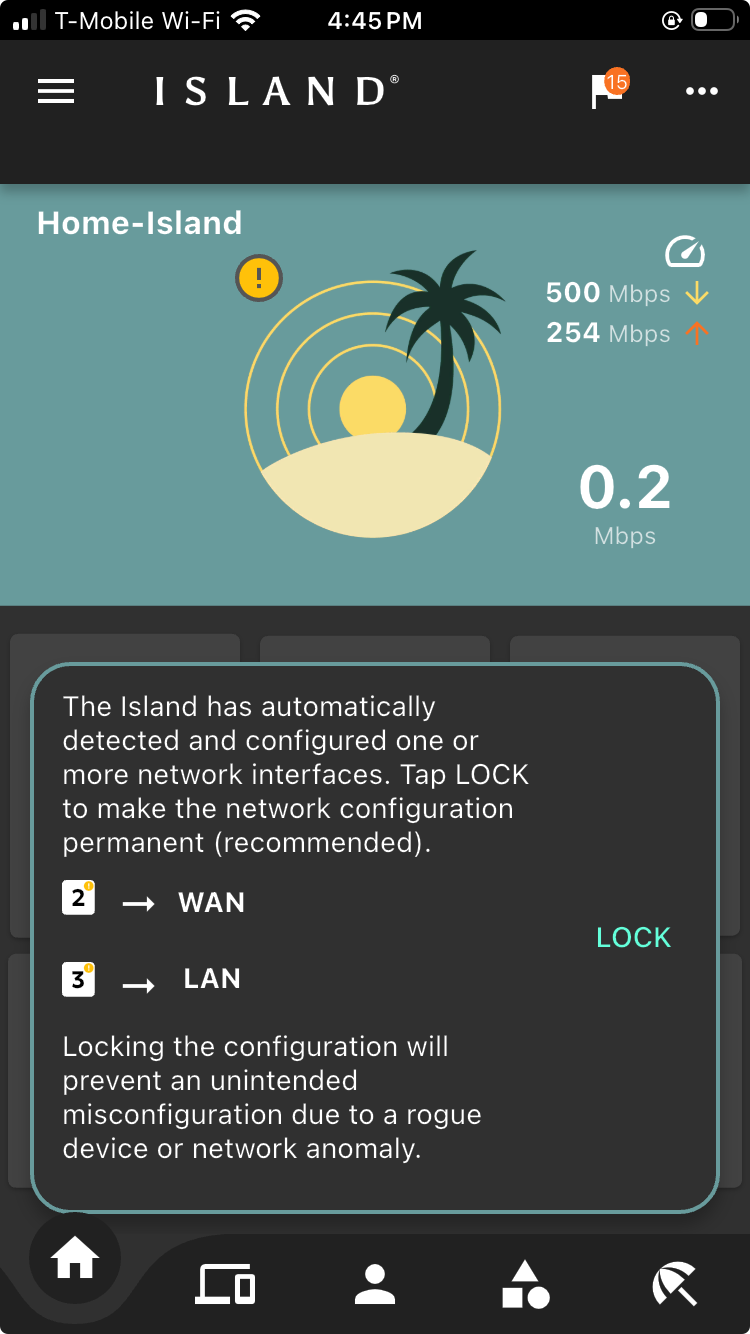
Follow the prompts to lock down the ports
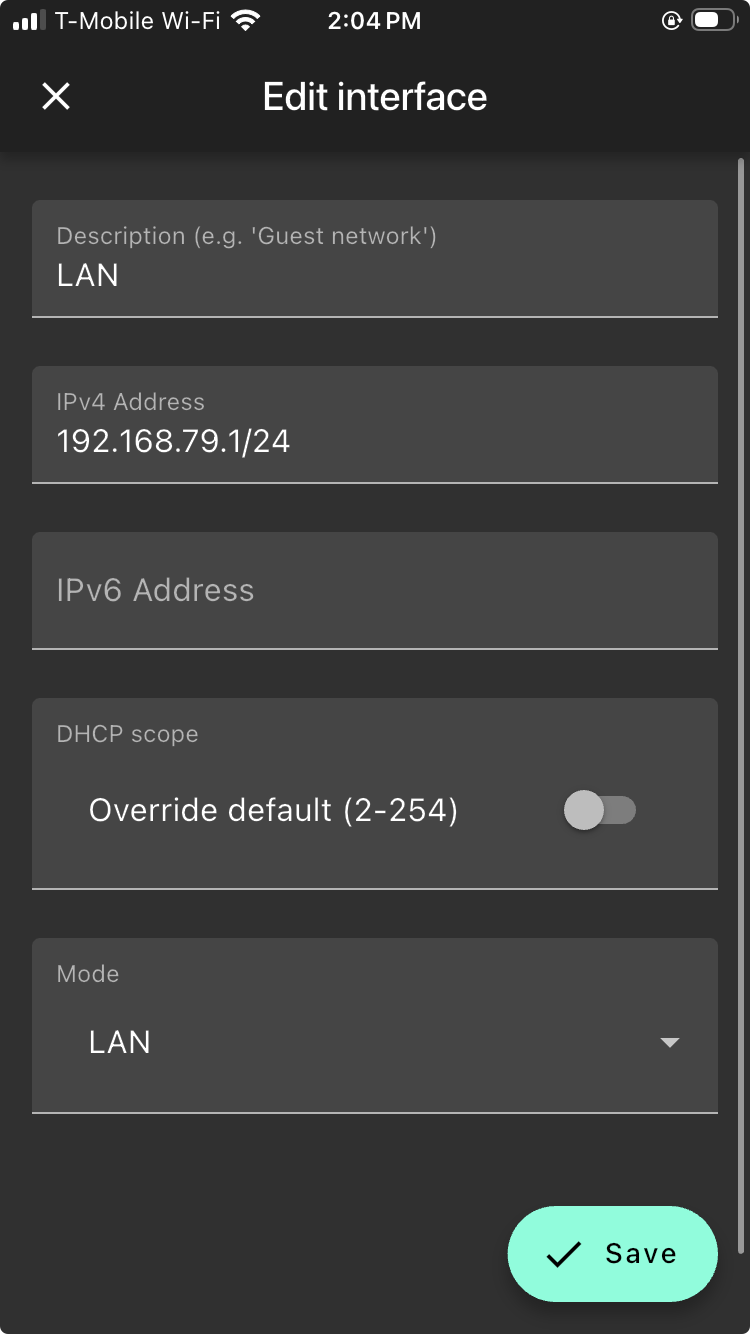
Optional: Edit the name, IP address scheme, and DHCP scope
The Island install is now complete. You can now return to the main dashboard to begin exploring the Island app.